

Installing and Uninstalling WooCommerce
Overview
WooCommerce can be installed and uninstalled the same as any other WordPress plugin. Full installation and configuration of WooCommerce on your site is an additional optional step to help with full setup, this is available in the Setup wizard.
Take a moment to review the server requirements before installation or you may encounter issues when using WooCommerce. If you need a new host or don’t have one yet see our recommended hosts who can get you set up with WooCommerce right away.
With WooCommerce activated several items are added to your site for it to function properly:
- New menu items, custom post types, and taxonomies for orders, products, and more.
- New widgets and shortcodes.
- User roles for shop managers and customers.
Deactivating and deleting the installed plugin does not remove any data in your site database so this requires an additional destructive step.
Installation via WordPress Admin
If you have an existing site and want to install WooCommerce, using the WordPress Admin is the most straightforward option as it handles everything for you.
Installation
To install WooCommerce:
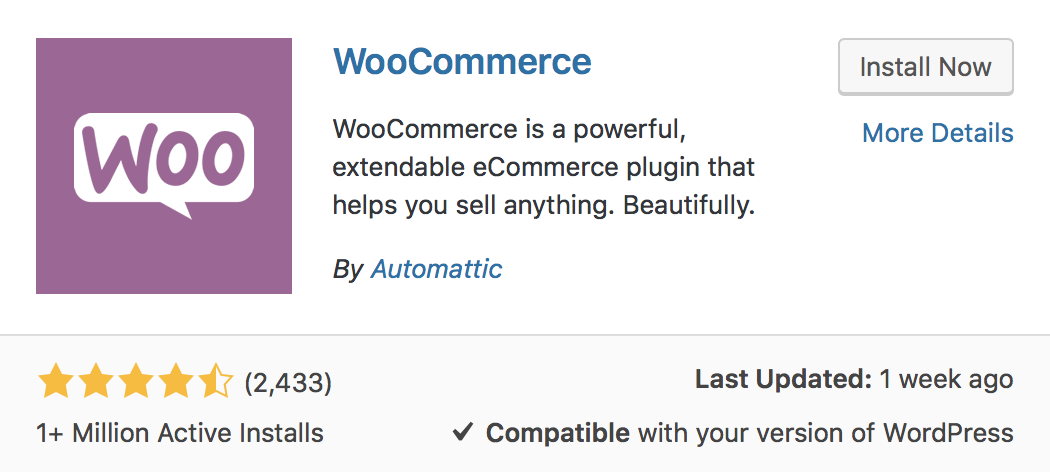
- Go to: Plugins > Add New.
- Search for “WooCommerce”.
- Click Install Now.
- Click Activate Now and you’re ready for the WooCommerce Wizard.
WooCommerce Setup Wizard
When WooCommerce is activated for the first time, the WooCommerce Setup Wizard will be the next screen you see after clicking “Activate”.
This helps you set up and configure your site with WooCommerce functionality.
For a full walkthrough of the Setup Wizard (also known as the Onboarding Wizard), please read through the WooCommerce Setup Wizard documentation.
Multisite Network Installation
On a multisite network installation, WooCommerce acts like most other plugins. Each site in the network, although sharing a database, stores its information in separate tables. Each store is a separate setup.
While you can network-activate plugins, such as WooCommerce and its extensions, you would be unable to share product databases, checkout, and user accounts across sites in the network.
Only themes and plugins are shared across the network of sites.
Reverting to a Previous Version of WooCommerce
We always recommend using the latest version of all plugins and extensions on your site for security reasons. Further, the latest version of our plugins and extensions will always have the advantage of any features and functionality now available. As a consequence, this section is for guidance only.
To use a previous version of WooCommerce:
- Disable and delete the current plugin.
- Restore a previous backup of your store’s database.
- Download a previous version of WooCommerce under the Advanced View.
- Upload the previous version under Plugins > Add New.
- Activate the previous version of WooCommerce.
One warning — as mentioned in step two, you need to check and see if the version of the WooCommerce database has been updated or not. More often than not, it is updated with each version of WooCommerce, so you would need to restore your database from the previous version of WooCommerce to make sure everything works as it should.
This is why we highly recommend having backups in place alongside a staging environment to test new releases of mission-critical software like WooCommerce. See Updating WooCommerce for more information.
Uninstalling WooCommerce
There are two things to understand when uninstalling or removing WooCommerce.
- If you deactivate and delete the plugin from WordPress, you only remove the plugin and its files. Your settings, orders, products, pages, etc… will still exist in the database.
- If you need to remove ALL WooCommerce data, including products, order data, etc., you need to be able to modify the site’s
wp-config.phpfile before deactivating and deleting the plugin.
As this is destructive and permanent, we provide this information as-is – The Woo.com Support team cannot help with this process or anything as a result of it.
To fully remove all WooCommerce data from your WordPress site, open your site’s wp-config.php file. Scroll down until you fine the the bottom, add the following constant on its own line above the “That’s all, stop editing” comment.
define( 'WC_REMOVE_ALL_DATA', true );
/* That’s all, stop editing! Happy publishing. */
Then when you deactivate and delete WooCommerce it will remove all of its data from your WordPress site database.

Need support with installing WooCommerce? WooExpert agencies are here to help. They are trusted agencies with a proven track record of building highly customized, scalable online stores. Hire an expert.