

Updated November 2, 2017
We’re always looking for ways to speed up WordPress installations
If you do any application monitoring you may have noticed that wp-cron.php can use up a considerable amount of resources. WordPress uses a file called wp-cron.php to mimic a server cron job. This file is used to preform automated tasks for example publishing posts, updates and email notifications.
The file wp-cron is called with every visit and refresh on your WordPress website. You can see how this could quickly use up server resources. So lets turn it off and create a server cron in cPanel to run as needed.
Disable wp-cron within your wp-config.php file
Open your wp-config.php file in your favorite editor and add the following line:
define('DISABLE_WP_CRON', 'true');
 /* That's all, stop editing! Happy blogging. */
Add it right above the “That’s all, stop editing! Happy blogging” comment.
Next Create a cron job for wp-cron.php on the server
Login to your hosting control panel. cPanel provides a simple interface to create basic cron jobs. We are going to create a cron job to run wp-cron.php. It is common practice to set the wp-cron to run every 4 to 6 hours. We are going to set it to run every 6 hours in this example.
1. Login To cPanel
2. You can get to the cron jobs from cPanel –> Advanced Tab –> Cron jobs

3. Change “Common Settings” to “Once an hour”
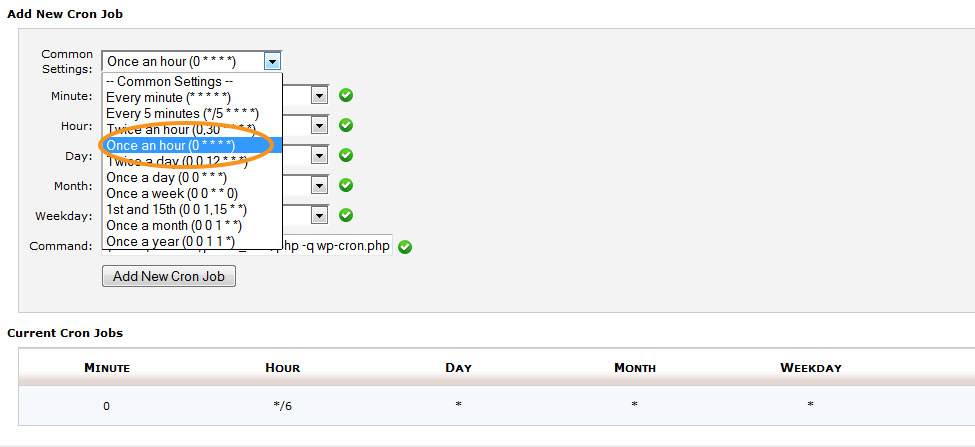
4. Set “Hour” to “Every 6 hours”

5. Now set the “Command” so that wp-cron.php will run.
cd /home/USERNAME/public_html; php -q wp-cron.php

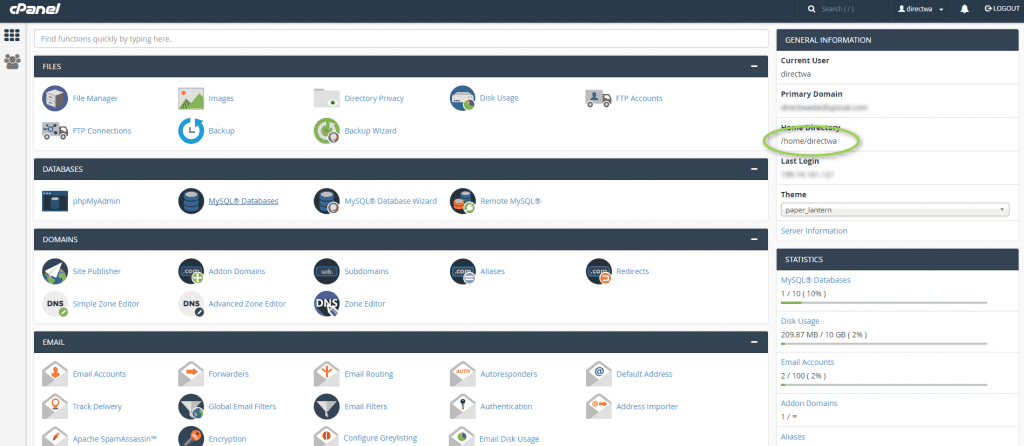
USERNAME is your cPanel username. You can view your home directory/username in the cPanel Stats panel. Located on the right column.
6. Finally Click “Add New Cron Job”
There you have it, on a high traffic WordPress site you have reduced the load drastically and this can lead to speeding up WordPress. Good luck and happy blogging.
Want to make WordPress lighting Fast? We can help you

6 Responses
will this work for shared hosting ?
Sure will if you have access to running scheduled tasks or crons. If you have cpanel you can follow the instructions above.
It’s been highly recommended to me to use the wget method for WP over php command line. I’m trying wget method just now. I’ll see how it turns out and maybe test it against the php command line option to see which feels it’s performing the best. I have a high traffic site so it’s nice to see another reco’ing every 6 hours (4x a day.) I’ve had one other expert reco that. W3TC is the real problem on the virtual cron b’c it was taxing our server beyond what was entirely necessary.
Let us know the results of wget. If I have time I will run a trial between the two and record the loads and see if there is any comparable difference.
The above method is wonderful.
I can decrease the CPU usage for my WordPress blog. 🙂
If you use page builders is this still effective?